In this post I would like to share how to setup personal blog pretty much for free, using Github Pages for hosting and personal site engine like Hugo.
You may only need to pay costs of the custom domain name, if you want URL to be something different than <username>.github.io (default domain of your website hosted on Github Pages).
You might wonder, how this post is different from many other resources available on Internet, including video’s on YouTube like this or this.
In majority, this post will indeed repeat what’s been mentioned already. Approached mentioned here uses only one repository! It is a simpler setup compared to old-school approach which required 2 repositories: one for your “dirty” content, and another one — for your generated blog content, that’s what the 1st video is about).
We will be using modern technique of publishing the website by means of Github Actions (Workflows), like in the 2nd video link I mentioned above, so every time you push changes to your main branch, updates are automatically published.
What you need?
- Github Account. Go and create one by signing up at https://github.com/signup if you don’t have it yet.
- Once signed up, create repository called
<your-github-username>.github.io. Yes, it needs to be called exactly like that! - * Custom domain name (it’s optional, but looks much nicer than the default Github Page’s domain name)
Find whatever works best for you in your region, I am not advising anything particular. - Computer with, preferably, unix-based operating system. For the sake of this post I am using Linux Mint with the default
bashterminal.
Set up computer for work
On your computer you will need to have Go programming language installed. It is used to convert .md files of your blog posts into HTML, as well as processing other supplementary files - images, CSS, JS, and few others. Follow instructions here.
You need to have hugo installed. Default installation instructions will advise you to use your system package manger, like homebrew for MacOS, or apt for Ubuntu family. What I noticed is that it does not install the latest version of hugo out of its default repositories. So my advice would be to grab the freshest and latest version from the hugo’s Releases page directly.
Set up Github repository
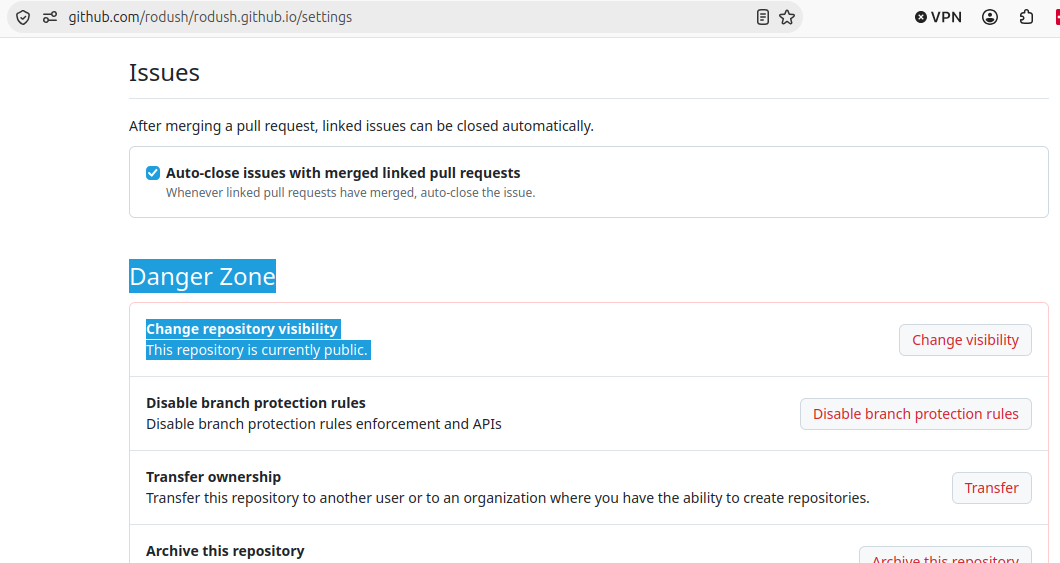
If you have your personal Free Github account, you will have to make your repository “public” in order to use Github Pages.
Scroll down to the very bottom of the Settings page, where under the “Danger zone” you will see the [Change visibility] button. Click it and follow the on-screen instructions. Make sure the repository is (made) public.
While in the Settings, click the Pages link in the left navigation panel:
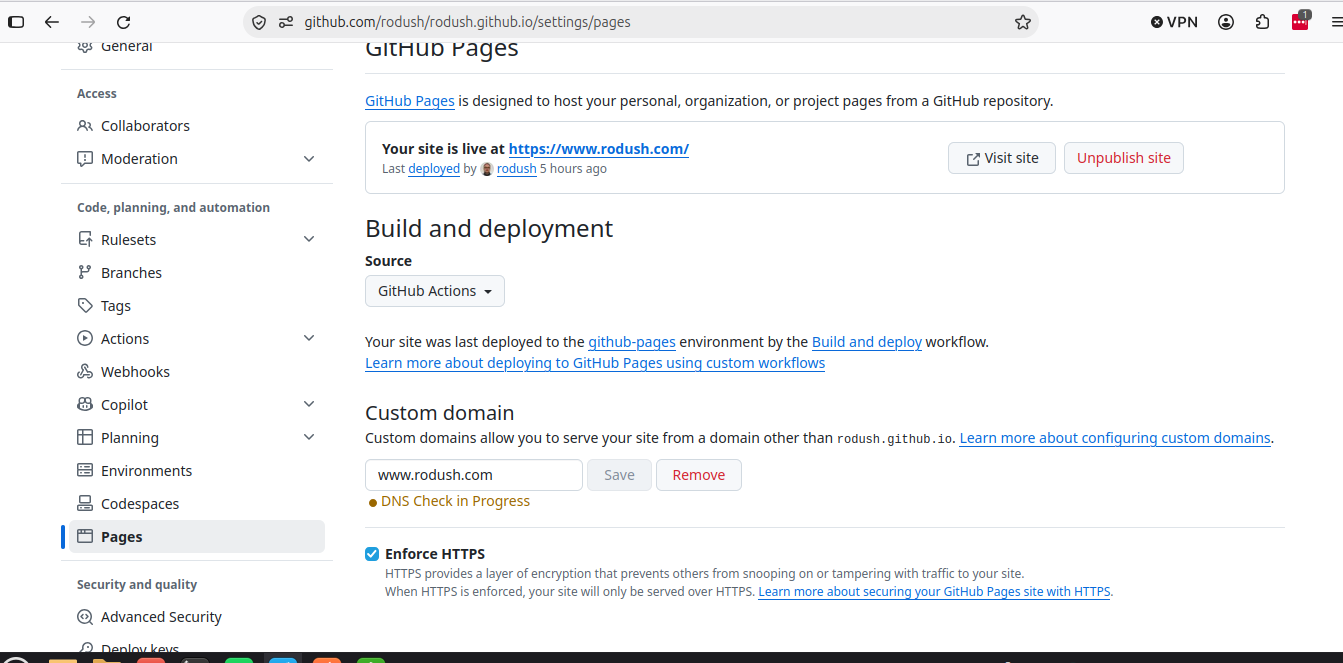
Find the “Build and deployment” section, and as Source select Github Actions, like on the screenshot above.
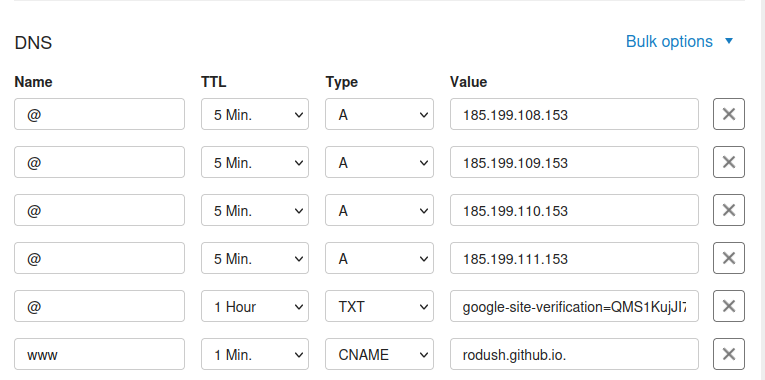
Under “Custom domain” section specify your custom domain name. Once clicked Save button it will initiate the DNS Check. You need to connect the dots by teaching your domain name provider to talk to Github Actions. It is all described in the GH’s pages’ documentation - Configuring an apex domain.
Essentially, in your control panel of the domain registrant you should configure records to look like this:
Create your blog
For your Hugo-based blog (or site), you need to pick some theme. Quite simplistic but very popular one is a PaperMod. The great news is that all hugo themes have to be made free, following the MIT license. Not like for Astro. But of course, paid themes are much more polished and 🆒-looking! Even though even for Astro you may find some free themes as well.
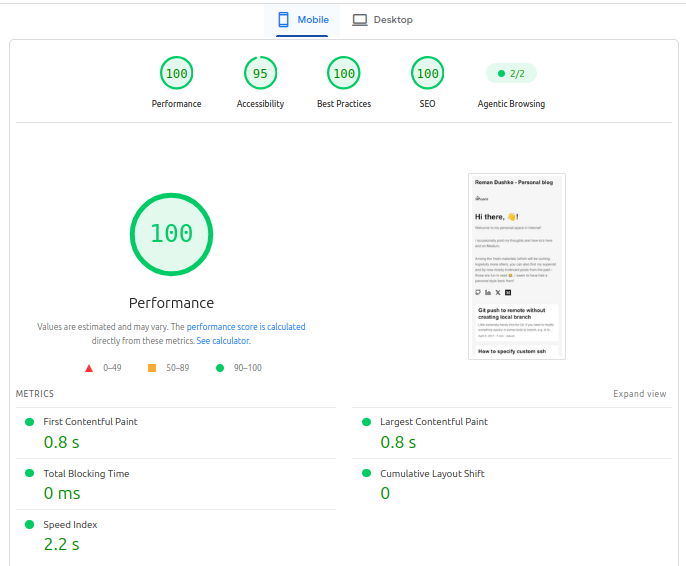
Cool stuff about Hugo’s themes and the website, that they are mostly super lightweight and blazing fast, scoring 💯! or close to 100, at the Page Speed Insights website:
You will be working on your web site / blog by creating content in Markdown on your local machine (or directly from Github, really). So, you need to clone your repository:
git clone git@github.com:<your-github-username>/<your-github-username>.git
I will not be repeating how to create Hugo site or content, you can find all the relevant information in the Hugo’s and PaperMod’s documentation, i.e. here.
I will show you how to add theme as a git submodule though, and how to check that it actually is registered correctly.
Add Theme
git submodule add git@github.com:adityatelange/hugo-PaperMod.git themes/PaperMod
where themes is the directory which will hold your theme’s cloned files.
Then in your .gitmodules file you should see an entry:
[submodule "themes/charaka"]
  path = themes/charaka
  url = https://github.com/natarajmb/charaka-hugo-theme.git
Make sure you’ve committed and pushed both - .gitmodules and themes/PaperMod!
Next time, when you are cloning your repository on another clean machine, you will need to clone the content including the submodules:
git clone --recursive git clone git@github.com:<your-github-username>/<your-github-username>.git
and then you will be able to pull content of the submodule with:
git submodule sync
you should see something like:
Synchronizing submodule url for 'themes/PaperMod'
Configure theme in your config.toml file:
# other settings
theme = PaperMod
# other settings
Now you can start adding content files. Again, just follow Hugo’s documentation for this.
Configure Github Actions
Create file .github/workflows/hugo.yml and put there content which you find on the Hugo’s website under Procedures.
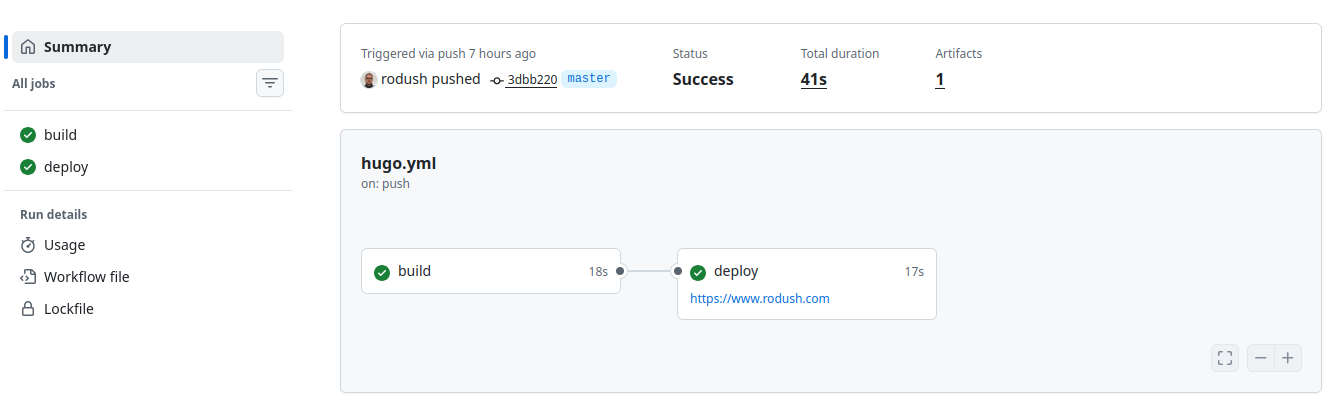
Once you’ve committed and pushed everything to remote repository, the workflow will trigger, and if all good, it will build and publish your blog!
The result of successful pipeline should look like this:
Go to your custom blog URL and see if the blog loaded. I suppose it did.
Congratulations 🎉 and happy blogging ⌨️!